 Jared Tracy
6de1e8acec
Jared Tracy
6de1e8acec
also sets time window to beginning of the date or end of the date. This will be helpful with the timezone gap between the server (usually UTC) and the client (localized timezone)

Ideal date solution to consider for the future would be to adjust the timestamp query based upon the server timezone setup. This becomes particularly helpful when the client is filtering by the end date but they are in a timezone behind UTC after the UTC has advanced to the next date. For example, being in Pacific time and querying for the current date after 4PM will result in not finding records that have been created after 4PM Pacific b/c the server timestamp (in UTC) will be the next calendar date.

Flowise - Build LLM Apps Easily





English | 中文
Drag & drop UI to build your customized LLM flow
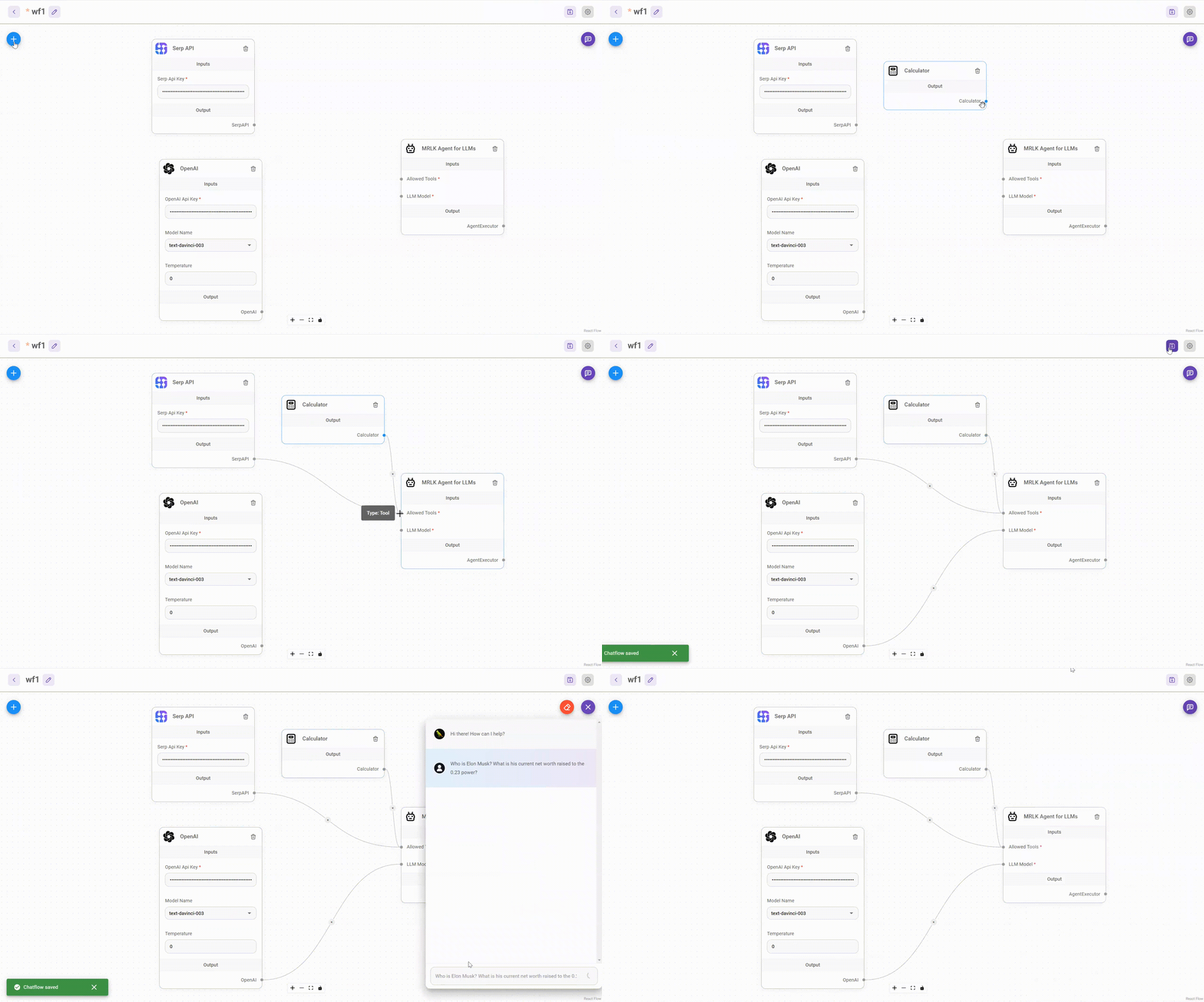
⚡Quick Start
Download and Install NodeJS >= 18.15.0
-
Install Flowise
npm install -g flowise -
Start Flowise
npx flowise startWith username & password
npx flowise start --FLOWISE_USERNAME=user --FLOWISE_PASSWORD=1234
🐳 Docker
Docker Compose
- Go to
dockerfolder at the root of the project - Copy
.env.examplefile, paste it into the same location, and rename to.env docker-compose up -d- Open http://localhost:3000
- You can bring the containers down by
docker-compose stop
Docker Image
-
Build the image locally:
docker build --no-cache -t flowise . -
Run image:
docker run -d --name flowise -p 3000:3000 flowise -
Stop image:
docker stop flowise
👨💻 Developers
Flowise has 3 different modules in a single mono repository.
server: Node backend to serve API logicsui: React frontendcomponents: Langchain components
Prerequisite
- Install Yarn v1
npm i -g yarn
Setup
-
Clone the repository
git clone https://github.com/FlowiseAI/Flowise.git -
Go into repository folder
cd Flowise -
Install all dependencies of all modules:
yarn install -
Build all the code:
yarn build -
Start the app:
yarn startYou can now access the app on http://localhost:3000
-
For development build:
-
Create
.envfile and specify thePORT(refer to.env.example) inpackages/ui -
Create
.envfile and specify thePORT(refer to.env.example) inpackages/server -
Run
yarn dev
Any code changes will reload the app automatically on http://localhost:8080
-
🔒 Authentication
To enable app level authentication, add FLOWISE_USERNAME and FLOWISE_PASSWORD to the .env file in packages/server:
FLOWISE_USERNAME=user
FLOWISE_PASSWORD=1234
🌱 Env Variables
Flowise support different environment variables to configure your instance. You can specify the following variables in the .env file inside packages/server folder. Read more
📖 Documentation
🌐 Self Host
Deploy Flowise self-hosted in your existing infrastructure, we support various deployments






💻 Cloud Hosted
Coming soon
🙋 Support
Feel free to ask any questions, raise problems, and request new features in discussion
🙌 Contributing
Thanks go to these awesome contributors
See contributing guide. Reach out to us at Discord if you have any questions or issues.
📄 License
Source code in this repository is made available under the Apache License Version 2.0.