
2.2 KiB
Step 4: Using comments to generate code with Copilot
Nicely done utilizing the Copilot tab! 🥳
You now have leveraged the Copilot quick tab auto-suggest as well as the Copilot hub to accept AI generated suggestions.
Now lets see how you can leverage comments to generate Copilot suggestions!
⌨️ Activity: Pull the latest code to the Codespace repo.
Note
Pull MUST be done prior to the next activity.
-
Use the VS Code terminal to pull the latest code:
git pull
⌨️ Activity: Generate Copilot suggested code from comments.
-
From inside the codespace in the VS Code explorer window, create a new file. (If you closed the Codespace from above, please open it back up or create a new Codespace.)
-
Name the file
comments.js. -
Type the following comment into the file:
// Create web server -
Press
enterto go to a new line. -
Copilot will suggest a code block.
-
Hover over the red squiggly and select the
...Note
If you don't see the copilot code block suggestion or the red squiggly and the three dots
..., you can typecontrol + enterto bring up the GitHub Copilot completions panel. -
Click
Open Completions Panel. Copilot will synthesise around 10 different code suggestions. You should see something like this: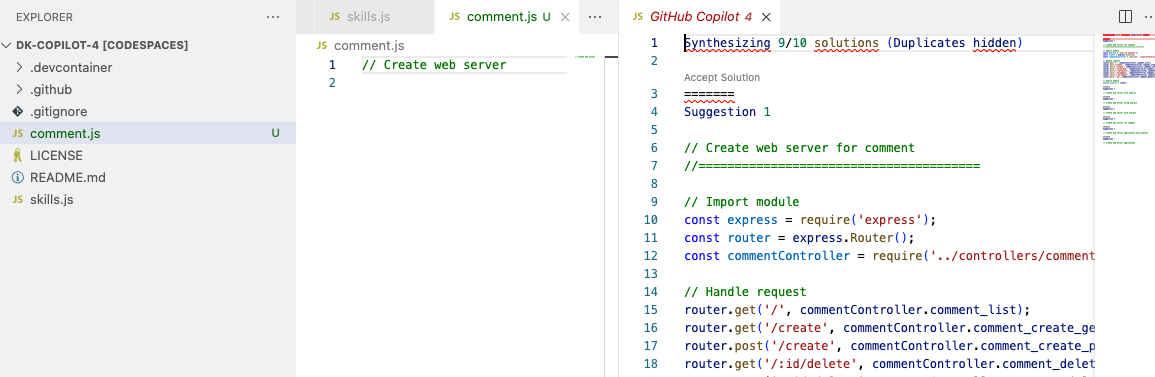
-
Find a solution you like and click
Accept Solution. -
Your
comments.jsfile will be updated with your solution.
⌨️ Activity: Push code to your repository from the codespace
-
Use the VS Code terminal to add the
comments.jsfile to the repository:git add comments.js -
Next from the VS Code terminal stage and commit the changes to the repository:
git commit -m "Copilot third commit" -
Finally from the VS Code terminal push to code to the repository:
git push
Wait about 60 seconds then refresh your repository landing page for the next step.